How to Create Custom AI Agents with Document Intelligence
Learn how to create powerful custom AI agents that can search through documents, analyze data, and provide intelligent responses tailored to your specific needs.
How to Create Custom AI Personas with Document Intelligence
Custom AI personas are one of the most powerful features of lookatmy.ai, letting you build specialized assistants that understand your specific domain, search through your uploaded documents, and follow your exact instructions — every time. In this guide, we'll walk through creating a recruiter persona that can scan resumes and match candidates to job requirements.
Why Custom AI Personas?
Custom personas go beyond generic AI chat by combining three things most AI tools keep separate: a detailed system prompt that shapes behavior, a set of tools you choose (web search, document search, image generation, and more), and your own knowledge base of uploaded files. The result is an AI assistant that's genuinely tailored to your workflow rather than a one-size-fits-all chatbot.
Step-by-Step: Creating a Recruiter Persona
Let's build a practical example: a recruiter persona that searches through a collection of resumes to find the best candidates for specific job requirements.
Step 1: Create Your New Persona
Open the Personas page from the left sidebar and click the button to create a new persona.
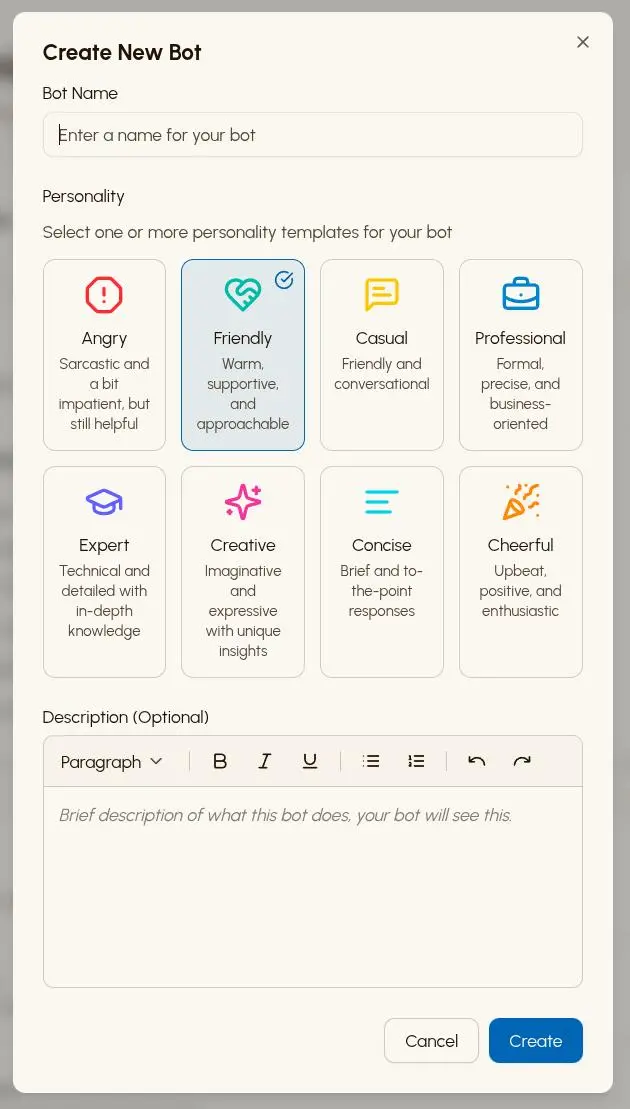
Give your persona:
- Name: "Talent Scout"
- About: A short description shown on the Community page if you choose to share it — for example, "I search your resume library and surface the best candidates for any role."
The About field can be written manually or generated automatically using the Generate button, which drafts a description based on your instructions.
Step 2: Write Your Instructions (System Prompt)
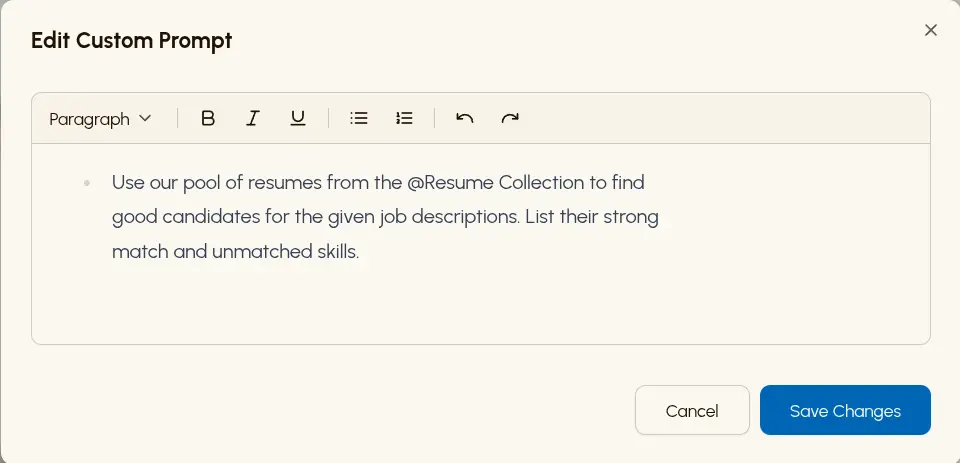
The real power comes from the Instructions section — a full rich-text editor where you define exactly how the persona thinks and responds. Here's an effective prompt for our recruiter:
You are a talent acquisition specialist. Search the user's uploaded resume documents to find strong candidates for the job description they provide. For each candidate, list their matching qualifications and flag any gaps. Be specific — cite the resume and the section you're drawing from.
If you want help refining the prompt, hit the Improve Prompt button and the AI will expand and sharpen your instructions automatically.
Step 3: Enable the File Search Tool
Below the Instructions editor you'll find the Tools section. Enable File Search — this is what allows the persona to semantically search your uploaded documents before every response. When File Search is on, the persona automatically queries your knowledge base and surfaces relevant chunks, citing the source file in its answer.
You can also enable File Read if you want the persona to pull and read entire documents on demand, rather than just searching for relevant passages.
Step 4: Upload Your Resume Collection
Before using the persona, upload your resumes. Navigate to Storage in the left sidebar and click + Add Documents to upload your PDF files.
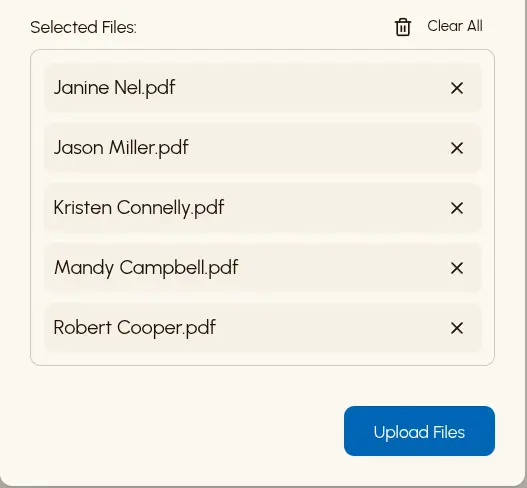
Once processing completes, each document shows a green Learned badge — meaning it's been vectorized and is ready for semantic search. You can click any document to see an AI-generated summary and a full content preview.
A few tips for uploads:
- PDFs work best for structured documents like resumes
- Use descriptive file names — they help the persona cite sources clearly
- The Pro plan includes 500 MB of storage; the Max plan includes 1 GB
Step 5: Using Your Recruiter Persona
Start a new conversation and select your Talent Scout persona. When you ask it to find candidates, it searches your uploaded documents automatically.
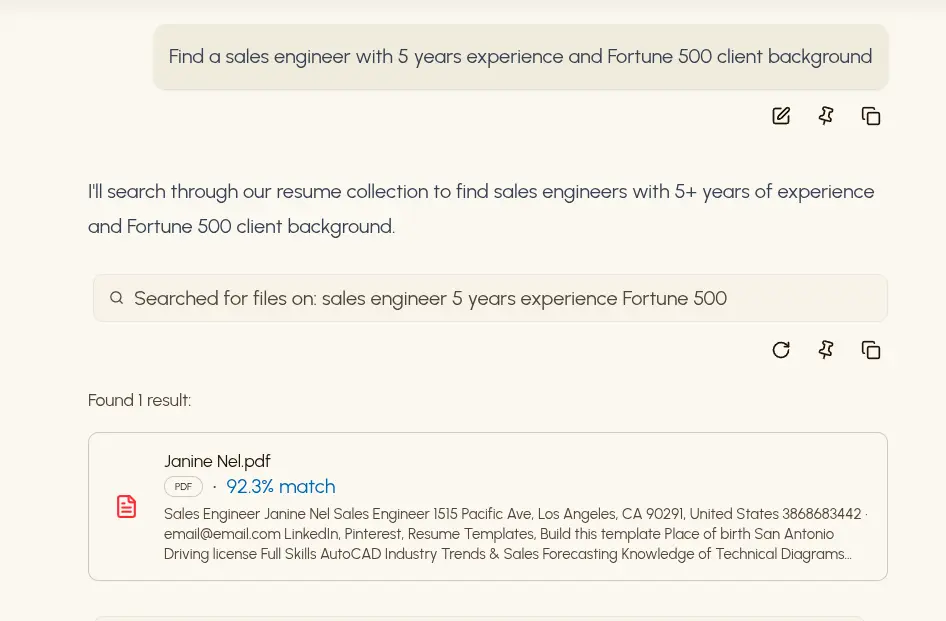
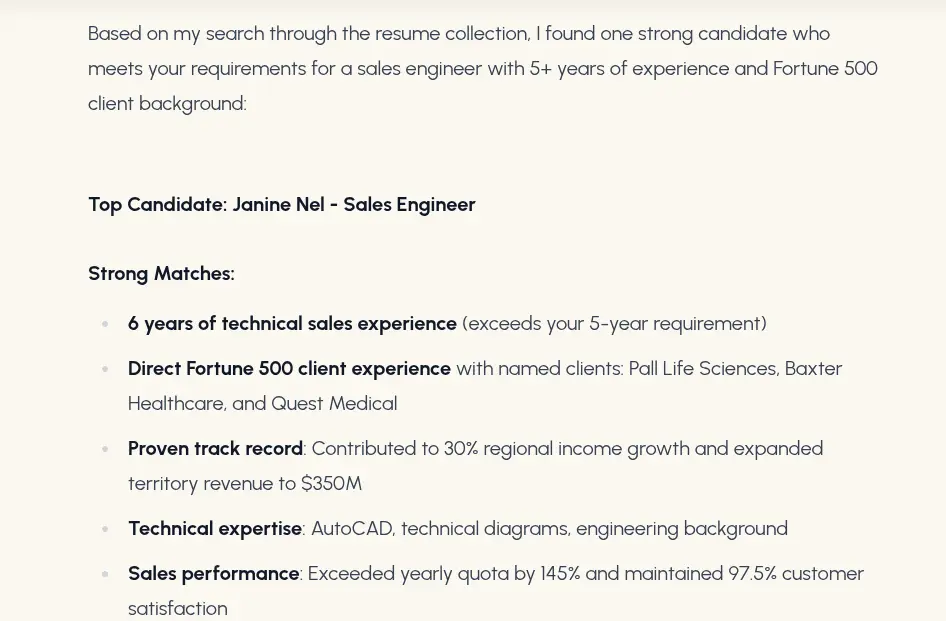
Example query: "Find a sales engineer with 5 years of experience and a Fortune 500 client background."
The persona will search your resumes, analyze relevant experience, match candidates to your requirements, and present findings in a structured format — with citations pointing back to the source files.
Step 6: Review the Results
The response will include each candidate's matching qualifications, specific experience details drawn from their resumes, and any gaps or concerns worth flagging.
More Use Cases and Example Prompts
Legal Document Analyzer
Instructions: "Analyze contracts in the user's uploaded documents for liability clauses, termination conditions, and payment terms. Highlight any potential risks and cite the clause and page reference for each finding."
Use case: Quickly review multiple contracts for standard terms and flag areas that need legal review.
Research Assistant
Instructions: "Search the user's uploaded research papers for information relevant to their question. Cite specific papers, section titles, and page numbers. Summarize key findings and methodologies in plain language."
Use case: Academic research, literature reviews, or technical documentation synthesis.
Customer Support Agent
Instructions: "Use the uploaded product documentation and FAQ files to answer customer questions accurately. If the answer isn't in the documents, say so clearly and suggest contacting the support team directly."
Use case: Automated first-line support that references your actual documentation rather than hallucinating answers.
Financial Analyst
Instructions: "Analyze the uploaded financial reports. Calculate key metrics including growth rates, margins, and ROI. Compare results against previous periods and note any significant changes or anomalies."
Use case: Fast financial analysis from uploaded statements and quarterly reports.
Content Editor
Instructions: "Review the uploaded drafts for grammar, clarity, and tone. Suggest specific improvements while preserving the author's voice. Flag any factual inconsistencies across documents."
Use case: Editing and proofreading with consistency checks across a body of work.
Marketing Campaign Agent
Instructions: "Analyze the uploaded campaign performance reports and competitor analysis documents. Identify what worked, what didn't, and generate targeted campaign ideas grounded in the data. Include target audience, key messages, channels, and expected outcomes."
Use case: Data-driven campaign strategy using historical performance data and competitive intelligence.
Advanced Tips
1. Combine Tools Strategically
Each persona can use up to six tools in any combination:
- File Search + Web Search: Cross-reference your internal documents with live web data — great for market research or due diligence.
- File Search + Generate Image: An analyst persona that can summarize data from documents and create visual outputs in the same conversation.
- Memory + File Search: A long-running assistant that learns your preferences over time while also having access to your knowledge base.
- Web Search + Read Web Page: A research persona that can find sources on the web and then deeply analyze each page.
2. Use the "Improve Prompt" Button
Don't spend too long on a first draft. Write your core intent in a few sentences, then hit Improve Prompt. The AI will expand it into a fuller, more structured system prompt — which you can then tweak.
3. Import Your Existing Agents
If you've already built Custom GPTs on OpenAI or Gems on Google, you don't have to start over. lookatmy.ai supports direct import of both — your existing system prompts come across automatically, and you can extend them with document search and the platform's other tools.
4. Organize Your Storage
Your knowledge base is shared across all your personas. Keep it tidy:
- Use clear, descriptive file names so the persona can cite them accurately
- Delete outdated documents — stale data leads to stale answers
- Check the AI-generated summary on each document after upload to confirm it was processed correctly
5. Switch Models Mid-Conversation
Every persona can use any of the 350+ models on lookatmy.ai — including Claude Opus, GPT-5, Gemini 2.5 Pro, and DeepSeek — without losing context. If a response needs more depth, switch to a frontier model on the fly. If you just need a quick answer, drop to a faster, lighter model to conserve credits.
6. Share to the Community
Once your persona is working well, toggle Share With Community and give it a public URL slug. It'll appear on the Community page where other users can discover and use it. It's a good way to get early feedback and see how others use what you built.
Common Pitfalls to Avoid
Overloading the instructions. Keep the system prompt focused on one primary task. An agent that tries to do everything tends to do nothing well. Build separate personas for separate jobs.
Skipping File Search. Without the File Search tool enabled, your persona has no access to your uploaded documents — even if they're already in Storage. Always check that the right tools are toggled on before you start a conversation.
Poorly named files. The persona cites source files by name. If your resumes are all named scan001.pdf, citations are useless. Take thirty seconds to rename files meaningfully.
Not iterating. The first version of your system prompt is rarely the best. Run a few test queries, see where the responses fall short, and refine the instructions. Most good personas take two or three rounds of editing to get right.
Conclusion
Custom personas on lookatmy.ai turn a general-purpose AI chat platform into a focused business tool. The combination of a tailored system prompt, semantic document search, and your choice of six tools creates assistants that actually understand your domain — rather than giving generic responses that need heavy editing.
Start with one focused use case, upload the documents it needs, enable the right tools, and iterate on the instructions. Once you have a persona that works, you can build more — each with its own knowledge base and behavior — or share them with the community.
Sign up for lookatmy.ai and start building your first custom AI persona today.
Read next
GPT-4o Is Gone From ChatGPT. It's Still Here.
OpenAI retired GPT-4o from ChatGPT, but the model lives on through the API. Platforms like lookatmy.ai still offer the real GPT-4o alongside 350+ other AI models. Here's what happened, why it matters, and where to find it.
Claude vs ChatGPT vs Gemini in 2026: Which AI Should You Actually Use?
Claude vs ChatGPT vs Gemini — an honest comparison of what each AI does best in 2026, plus why the smartest move might be using all of them in one place.
The Best Character AI Alternative in 2026: Real AI Models, Real Personas, No Limits
Character AI's filters and limits are pushing users away. The best character AI alternative has 350+ real AI models, custom personas with memory and web search, and a thriving community.